
Your PC, Your Rules. Customize Windows 11.
Restore the classic Windows 10 taskbar, bring back the full right-click context menu, and tweak File Explorer. Download ExplorerPatcher to get classic behavior, reliable controls, and a lightweight, reversible setup on Windows 11.
About ExplorerPatcher
ExplorerPatcher is a free, open-source utility for Windows that restores proven, ergonomic shell behavior—classic taskbar with labels, full context menus, and File Explorer refinements—so you work faster without risky registry hacks.
The Goal: Close the Gap
ExplorerPatcher was created to let people continue using the Windows shell they know and trust, even on Windows 10 and 11. It reintroduces proven interface elements—like the Windows 10 taskbar, full right-click context menus, and File Explorer refinements— without requiring unsafe registry edits or complicated hacks.
Community-Driven. Stability-First.
As an open-source project on GitHub, ExplorerPatcher is transparent and constantly improving. Every release is built for reliability and long-term use, ensuring a stable, productive environment that puts you in control of your PC.
ExplorerPatcher Features Guide
An authoritative, product-first overview of how ExplorerPatcher restores ergonomic control to Windows 11 (and 10). Use the menu to jump between topics; the active section highlights automatically as you scroll.
Classic Taskbar & Labels (Never Combine)
Bring back the proven Windows 10 taskbar with visible text labels and predictable button behavior so multitasking is calmer and faster. If you prefer the Windows 11 look, you can keep it—and still gain ExplorerPatcher’s stability and context-menu improvements.
- Combine behavior: Never combine, Combine when full, or Always combine.
- Toggle Search, Task View, and Show Desktop; choose small/large icon density.
- Dock bottom/top/left/right (supported builds) with reliable hit-targets.

Taskbar Context Menu, Properly Restored
Right-click the taskbar to access useful options immediately—no extra “more” clicks and no stripped-down menus. Core tools like Task Manager and window actions live exactly where experienced users expect them.
- Classic entries returned in place, on primary and secondary taskbars.
- Improved behavior with auto-hide and multi-monitor setups.
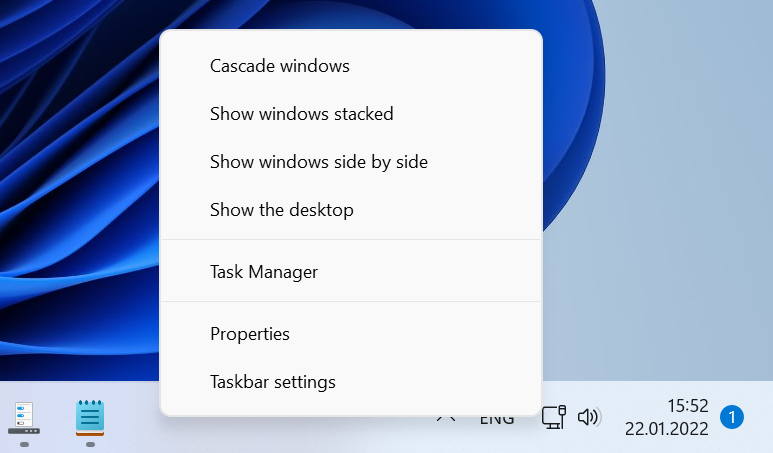
Aligned Tray Menus & Flyouts; Clock Controls
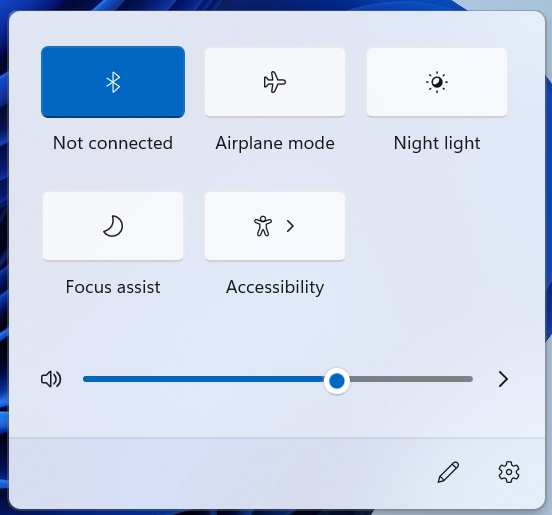
Align tray menus to their icons, choose whether flyouts toggle on click or right-click, and decide which corner items appear. Prefer precise time? Show seconds when using the classic taskbar mode for fast, glanceable accuracy.
- Skin menus to match system style; center/align pop-ups to their trigger.
- Hide Control Center if unused; surface the touch keyboard on demand.
- Seconds on the clock with classic taskbar for time-critical work.
Start Position & “Most-Used” Tuning
Put Start where your hand expects it—left or centered—and tune how many Most used apps surface. The goal is instant access to daily tools without crowding or detours.
- Left/center alignment preserves navigation habits and muscle memory.
- Control the visible count of frequent apps for a focused grid.
Full Context Menus, Stable Panes, Legible Views
Restore complete right-click menus, steady the navigation panes, and favor readable folder views over ornamental layouts. Explorer becomes a fast, precise file manager designed around real work.
- Complete menus for files, folders, and desktop—no hidden extra click.
- Sane default views and pane behavior reduce misclicks and backtracking.
- All changes are reversible—experiment safely and roll back anytime.
Classic Ribbon & Legacy Context Menu
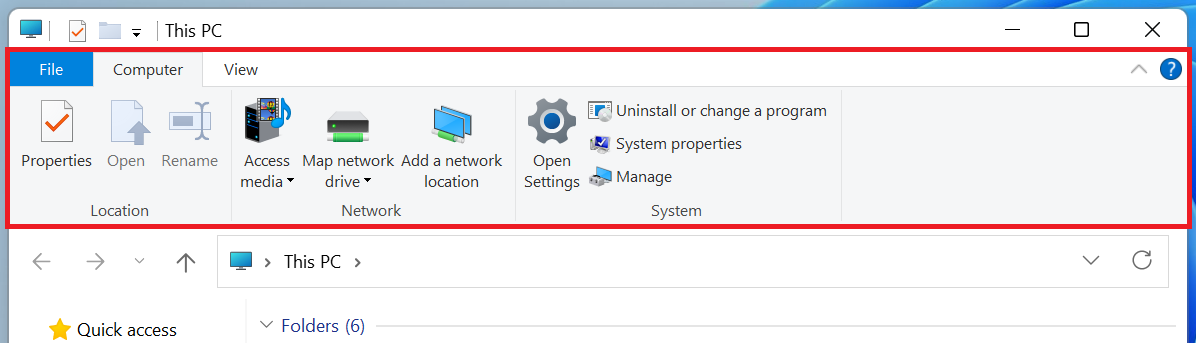
Prefer the Windows 10 ribbon? Hide the Windows 11 command bar and bring back the full legacy menu. You get the tools you rely on—directly—without the “Show more options” friction.
- Disable Win11 command bar; enable the classic ribbon layout.
- Replace trimmed Win11 context menu with the complete legacy version.
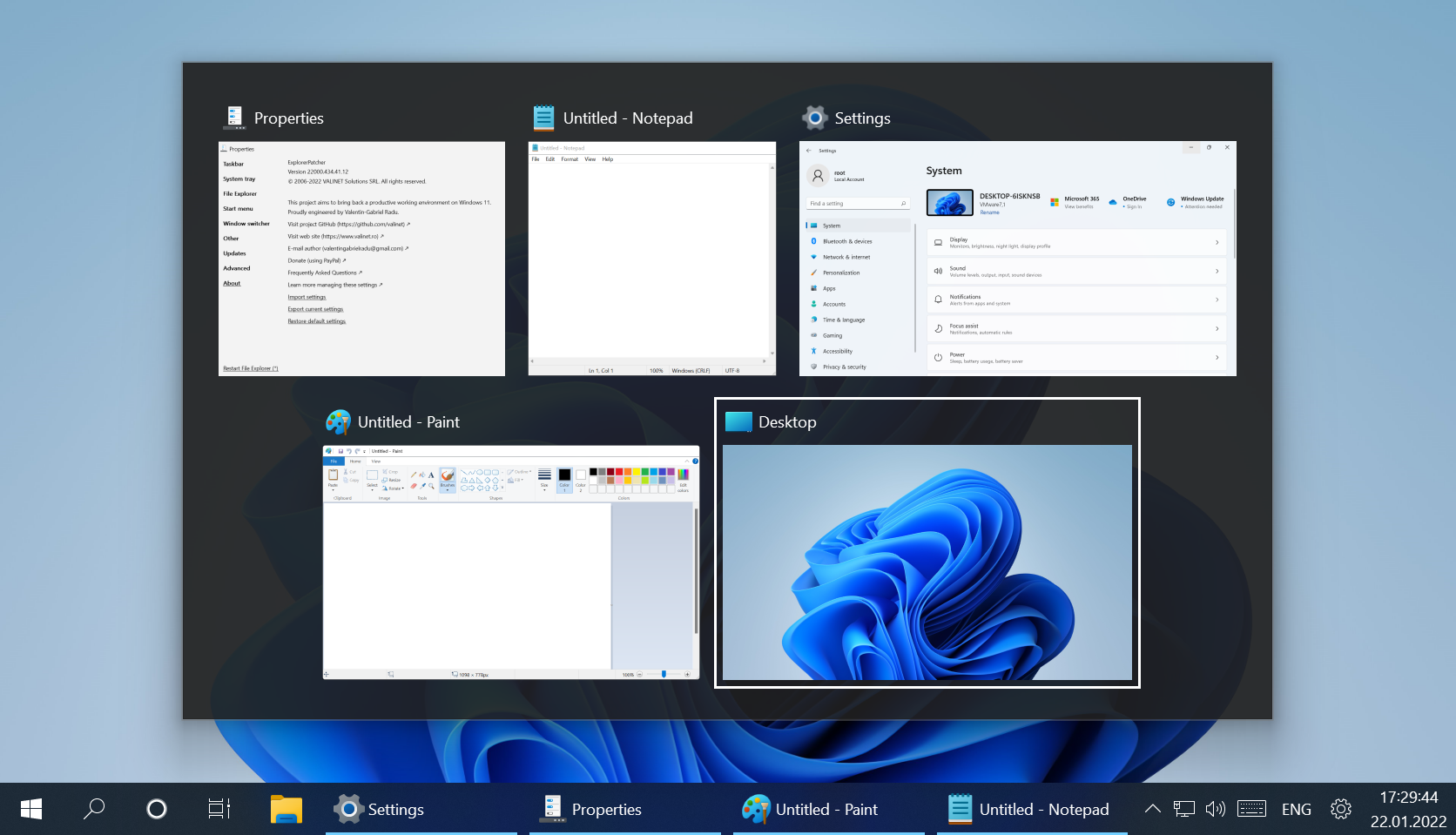
Simple Window Switcher (Calm Multitasking)
Switch tasks without stress. The Simple Window Switcher emphasizes legibility and consistent navigation, so moving between apps becomes a smaller cognitive load and you stay in flow longer.
- Large previews and stable selection for confident switching.
- Configurable interactions for keyboard-first or mouse-first users.
Consistent Taskbars & Controls Across Displays
Multi-display workflows demand coherence. ExplorerPatcher extends taskbars and menus logically across screens, keeping icons, clocks, and context menus in sync, so moving between displays never breaks your rhythm.
- Taskbars on every monitor with functional parity.
- Mirrored or independent clocks and tray items—your choice.
- Preserved alignment and auto-hide rules everywhere.
Advanced Options (Recents, Density, Animations)
Tune Start into a truly functional hub: highlight or hide recent items, control visual density and expansion behavior, and trim distractions that slow you down. The result is a launcher that feels immediate and intentional.
- Toggle recent documents to reduce clutter or resurface context.
- Adjust list density and expansion speed for faster scanning.
- Remove non-essential sections to keep focus on work.
Shell Refinements that Add Up
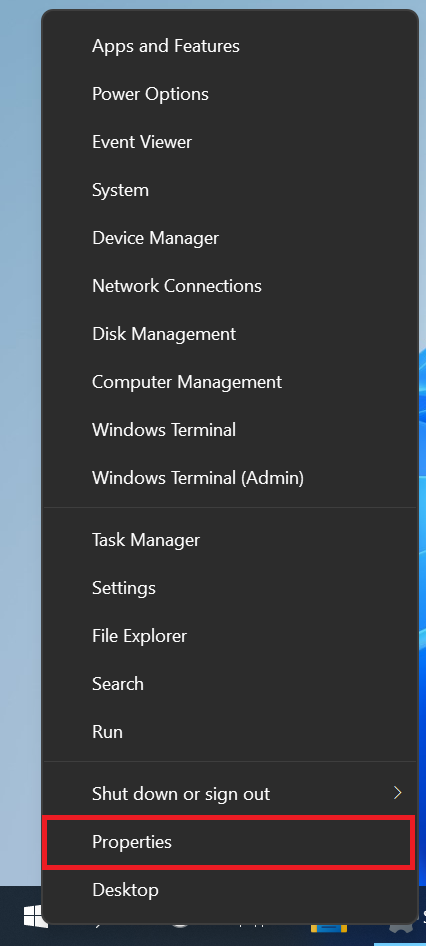
Small options compound into real speed: remember the last used Properties tab so you land exactly where you left off; add or remove entries in Win+X; draw subtle separators between toolbars; map Win+C to the clock flyout for faster time and calendar access.
- Persist last Properties section; streamline Win+X for your routine.
- Optional clock seconds and toolbar separators for at-a-glance clarity.

Backup & Restore Your Configurations
Lock in your hard-won setup. Export your ExplorerPatcher configuration to a file, restore it after OS updates, and maintain variants for work, gaming, or minimal modes—all without re-tuning from scratch.
- One-file export for safe backup and sharing.
- Instant restore to recover after Windows changes.
- Multiple profiles for different contexts or users.

Recommended Presets for Fast Setup
Not sure where to start? Apply a preset matched to your style: Classic Windows 10, Minimal Productivity, or Power User. You can customize further anytime—presets just get you to a solid baseline in a click.
- Classic Windows 10—restore familiar ergonomics end-to-end.
- Minimal—only essential elements for deep focus.
- Power User—advanced controls and shortcuts surfaced by default.
Taskbar Buttons & Density Controls
Tune how compact or expressive the taskbar feels. ExplorerPatcher lets you adjust icon size, button spacing, and label behavior so your docked windows remain visible at a glance without wasting horizontal space. The goal is a readable strip that scales from ultrawide workstations to small laptops with equal clarity.
- Small vs Large icon density to suit your display and eyesight.
- Show labels for quick identification, or hide them for a minimal look.
- Keep “Show Desktop”, Search, and Task View only if they earn their real estate.
Explorer Navigation Pane & View Discipline
Navigation should be stable and predictable. Refine the behavior of the left navigation pane and default folder views so folders open where you expect them and visual noise stays low. Reduced reflows and consistent ordering mean fewer misclicks and faster retrieval of frequently visited locations.
- Keep navigation pane state steady when opening in new windows or switching views.
- Favor legible list/details views where throughput matters over ornamentation.
- Reversible tweaks let you experiment without risk.
File Dialogs & Cross-App Consistency
Open/Save dialogs should behave the same way regardless of app. By restoring classic context behaviors and aligning Explorer defaults, ExplorerPatcher reduces the mental overhead of switching between different software with different file pickers.
- Predictable right-click actions across dialogs and Explorer proper.
- Cleaner directory traversal and fewer “lost in UI” moments.
- Settings that prioritize speed in professional workflows.
Win+X Menu Curation (Power User Menu)
The Win+X menu is a high-value surface. Curate it to foreground the tools you actually use—Properties, Device Manager, Terminal, Network, or Disk tools—so you jump to system tasks in a single chord without rummaging through Settings layers.
- Add or remove entries to match your routine and team conventions.
- Keep the list short, purposeful, and muscle-memory friendly.
- Pairs well with Start tuning for a cohesive launcher experience.
Keyboard Shortcuts & Win+C Remap
Keyboard-first users move faster with consistent chords. Remap Win+C to the clock flyout instead of Teams so time and calendar are always one tap away. Combined with never-combine labels, this turns the shell into a reliable, low-latency interface.
- Direct access to clock/date flyout with Win+C for quick scheduling checks.
- Keep other Windows key mappings intact to avoid breaking habits.
- Use in tandem with Start alignment for fewer cursor miles.
Performance & Footprint
ExplorerPatcher is built to be lightweight and predictable. The objective is fast startup, low memory overhead, and minimal interference with shell timings. You get practical features without bloat, telemetry, or surprise background tasks.
- Compact code paths geared for everyday responsiveness.
- No added telemetry; no adware or nags—keep the system quiet.
- Changes target shell ergonomics, not gratuitous visuals.
Update Resilience (OS Changes & Recovery)
Windows updates can alter shell behavior. ExplorerPatcher emphasizes recoverability: keep backup profiles, restore in one step, and quickly re-assert your preferences after major OS revisions so you’re never stuck with defaults.
- Export/import complete configurations before large updates.
- Rapid restore to working state after feature updates.
- Non-destructive tweaks that respect system integrity.
Localization & Regional Behavior
Whether you run English, Hindi, or any other locale, consistency matters. ExplorerPatcher aims to keep controls, labels, and placements stable across languages so instructions and team habits transfer cleanly in international setups.
- Stable control placement regardless of language pack.
- Predictable menus support cross-team documentation and training.
- Pairs with profiles to share configurations across regions.
Safety, Rollback & Support
Customization should be safe. ExplorerPatcher focuses on reversible options, explicit backups, and community-audited code. If something doesn’t fit your workflow, revert in seconds—no registry spelunking or risky scripts required.
- Reversible settings with clear defaults.
- Backup/restore protects against accidental changes.
- Open-source development for transparency and trust.
Download ExplorerPatcher
Get the latest stable version of ExplorerPatcher directly from our official servers. Always up to date with every GitHub release.
System Requirements
- Operating System: Windows 11 (all builds) or Windows 10 (21H2 and later)
- Architecture: x64 or ARM64 (separate installers)
- Privileges: Administrator rights recommended
- Dependencies: None — self-contained executable
- Internet: Required for initial download and updates
Latest Version: 26100.8457.70.3
| File | Type | Size | Download |
|---|---|---|---|
| ep_setup.exe | Installer (x64) | 11.7 MB | Download |
| ep_setup_arm64.exe | Installer (ARM64) | 11.3 MB | Download |
What's new in ExplorerPatcher 26100.8457.70.3
Caution: This GitHub repository (valinet/ExplorerPatcher) is the only official distribution channel of ExplorerPatcher. Do not download "ExplorerPatcher" from any other places than this releases page, as they may contain malware that can compromise your data.
Caution:
- Please verify that Smart App Control is turned off before installing this software. Otherwise there is a risk where explorer.exe would not start up on new EP versions.
- Do not install this software on machines with SentinelOne installed. We have received reports that SentinelOne can hold EP's files hostage, preventing uninstallation.
Tip: Windows Defender no longer flags ExplorerPatcher. It is no longer needed to configure Defender exclusions. However, if you use 3rd party security software, you might need to add these folders into its exclusions:
Please include the following files and folders in your antivirus' exclusion list to prevent issues due to antivirus detections:
C:\Program Files\ExplorerPatcher%APPDATA%\ExplorerPatcherC:\Windows\dxgi.dll⚠️ IMPORTANT:explorer.exewill not start if this file exists but is blocked from being loaded.C:\Windows\SystemApps\Microsoft.Windows.StartMenuExperienceHost_cw5n1h2txyewyC:\Windows\SystemApps\ShellExperienceHost_cw5n1h2txyewy
Tested on OS builds 22621.4317, 22631.7079, 26100.6899, 26100.8037, 26200.8246, 26200.8457, 26300.8493, and 28000.2113.
1
- 🚨 Important: Fixed 10 taskbar and 10 Start menu crashing on 26220.8474 (Beta) and 26300.8493 (Experimental).
- Please update EP as soon as possible to ensure future updates run smoothly, otherwise
explorer.exewill not run with EP's 10 taskbar andStartMenuExperienceHost.exewill not run when 10 Start menu is selected. - Those builds have removed remnants of the 10 Start menu in
StartTileData.dll. Consequently, the 10 Start menu option has been removed on those builds and future builds without the required stuff in the DLL. (bf36cde, 8a5b8ba)
- Please update EP as soon as possible to ensure future updates run smoothly, otherwise
- Highlight: Fixed Windows 10 battery flyout crashing on 25951+. (659c2d0)
- As a side effect, the network flyout buttons had to be reverted to pre-24H2. Fixes #4691.
- Changes to "Primary taskbar location on screen" in EP properties now reflect immediately. (6c9b41d)
- Windows 11 taskbar autohide is no longer modified on Explorer boot. (e6becc9)
- "Open Start in All apps by default" is now hidden when the new 11 Start menu is enabled. (#4648) (d8f1d1c)
- Windows 10 Start menu on 21996-22000.51 now no longer crashes. (39ac219)
- Fixed regedit.exe crashing when switching to thumbnail view in the import/export registry file dialog. (#3940) (80be85d)
- Updated pattern matching code to support recent builds especially with 26H1 ARM64. (677fd9f, e641e0a, e77123a, 3c8e79f, 854770b, 04dd52b, ce22476, baf0fdb, b532116, c0adee2, eefa0bf, 420e112, 3be4f3f, 1bf0d81, 47d7481, 31d2c23, bdf95c3, fe8cc2b, 1be3c79)
- Improved efficiency on ARM64.
- Added Greek translations. Thanks @KonVetsos!
ep_taskbar:
- Now supports all 43 Windows 11 languages.
- Fixed reimplementation mistakes in system tray and some other places.
- [For mod developers] Changed ep_taskbar's DLL names from numbers to the codename of the first major release a single variant supports. (cc36e34)
- [For mod developers] TrayUI no longer inherits
Microsoft::WRL::RuntimeClass; vtables are now stable on builds with multipleITrayUIrevisions likeep_taskbar.ge.dll(formerlyep_taskbar.5.dll).
2
- Introduced a reimplemented 10 Start menu tile layout engine that was removed in 26xxx.8474. (688514f)
- Note that the restoration is partial. Tiles can overlap when pinned not by dragging from apps list; this can be worked around by restarting
StartMenuExperienceHost.exeorexplorer.exeas a whole to repair the layout. - Stay tuned on #4960 and the Discord server for updates.
- Note that the restoration is partial. Tiles can overlap when pinned not by dragging from apps list; this can be worked around by restarting
- Added an executable name blacklist to prevent shell extension from loading in certain applications. (#4819) (991b8ca)
- Updated 10 Start menu animation patterns for 28xxx.2149+ ARM64. (c480fc2)
ep_taskbar:
- Fixed a deadlock relating to base EP reporting taskbar position and the taskbar reporting search/task view button location and size both to
WindowsUdk.ShellCommon.dllduring taskbar initialization.
3
- Start10: Mitigated a new breakage related to removal of tablet mode code currently being rolled out on 25H2 Experimental builds 8553, 8687, 8697, and beyond. Thanks @AllieTheFox! (94cc68e)
- Start10: Pinned tiles are no longer reset after 5 consecutive crashes. Thanks @AllieTheFox! (cc85aaf)
- GUI: Fixed the wording of some strings. Thanks @Sefinek! (626ebf2)
✉️ A little message from @Amrsatrio: If you want to support my work of keeping ExplorerPatcher working with the latest Windows builds, please do so through my GitHub sponsors page or through these crypto addresses. Thank you very much for the support!
- BTC:
13BDBbyTGsifywotv3kAX618rvfTFYr8FT - LTC:
ltc1q27gwddq0pmgzw5fdufrhqenhdfp5sruljx546j
Please consult the README for more details. A detailed change log is available here. An archive containing all the files generated during the build process (including dxgi.dll and symbol files) is available here.
This release has been published automatically from commits up to and including db5ec1c in tag 26100.8457.70.3.
Release notes from the GitHub release page, published June 20, 2026.
Previous Versions
ExplorerPatcher FAQs
A comprehensive knowledge base answering the most frequently asked questions about ExplorerPatcher — installation, safety, troubleshooting, and advanced customization for Windows 10 and 11.
Is ExplorerPatcher safe and where should I download it?
Yes — ExplorerPatcher is fully open-source, verified, and trusted by the Windows customization community. Every release on GitHub includes its source code, changelog, and digitally signed binaries. Always download from the official GitHub Releases page to ensure authenticity. Avoid rehosted files or “modded” installers, as they can be unsafe. When installed from the legitimate source, the program is completely secure and easy to uninstall at any time.
How do I install ExplorerPatcher?
Installation is quick and safe. Visit the official GitHub page, download the latest ep_setup.exe, and run it as an administrator. The installer automatically applies the patch, restarts Explorer, and activates all enhancements. Once installed, right-click the taskbar → Properties to open the configuration panel. From here, you can enable the classic Windows 10 taskbar, re-enable context menus, or tweak Explorer behavior — all without registry edits or scripts.
How do I uninstall ExplorerPatcher?
Uninstallation is straightforward. Open Taskbar → Properties → Uninstall to remove it safely. Alternatively, navigate to Windows Settings → Apps → Installed Apps → ExplorerPatcher → Uninstall. If your desktop becomes unstable, rename ep_setup.exe to ep_uninstall.exe and run it. This triggers an automatic cleanup restoring your default Windows experience. No leftover services or registry entries remain afterward.
What if Windows Update causes a black screen or missing taskbar?
Occasionally, Windows updates can conflict with shell customizations. If your taskbar disappears or you see a black screen, press Ctrl + Alt + Del, open Task Manager, and restart explorer.exe. If the issue continues, boot into Safe Mode, reinstall the latest ExplorerPatcher release, then restart normally. Updating both Windows and EP ensures long-term stability after cumulative updates.
Why is “Pin to Start” not working?
When Microsoft changes the Start menu internals, pinning shortcuts may temporarily fail. This is not a bug in ExplorerPatcher but rather an update mismatch. Simply install the latest version, restart your PC, and the functionality should return. You can also rebuild the Start cache by restarting Windows Explorer or logging out and back in.
How can I enable “Never Combine” taskbar buttons with labels?
To restore the classic non-combined taskbar, right-click the taskbar → Properties → Taskbar Style → select Windows 10. Under Combine taskbar buttons, choose Never combine and enable Show labels. This mimics the pre-Windows 11 layout where each window is clearly labeled. On newer builds like 23H2, you can also use Windows’ own “Never combine” setting for the same result.
Does ExplorerPatcher work with 7+ Taskbar Tweaker or Open-Shell?
Yes — both utilities are compatible when configured correctly. Enable the Windows 10 taskbar in ExplorerPatcher first, then use Open-Shell for classic Start menus or 7+ Taskbar Tweaker for granular control. Avoid enabling overlapping tweaks (like button grouping) in multiple tools simultaneously, as that may cause unpredictable taskbar behavior. Most users run them side-by-side without issues.
How do I fix update failures or setup errors?
If an update fails, first ensure no ExplorerPatcher windows are open. Then run the latest ep_setup.exe directly over your current version. The installer handles upgrades automatically. Should an error persist, uninstall ExplorerPatcher, restart your PC, and reinstall it fresh. This clears corrupted cache files or outdated configurations and guarantees a clean environment.
Can ExplorerPatcher conflict with multi-monitor or shell tools?
ExplorerPatcher supports multi-monitor setups, high DPI screens, and most desktop utilities. However, apps that hook into taskbar APIs — such as DisplayFusion or WindowBlinds — can occasionally overlap with EP’s features. If you notice flickering or misplaced icons, update both programs to their latest versions and re-enable one feature at a time until stability is restored.
Where can I report bugs or request new features?
All feedback, bug reports, and feature suggestions should go directly to the ExplorerPatcher GitHub repository. Open the “Issues” tab to report a problem or share logs. For general questions or tips, use “Discussions.” The developer and community actively respond and maintain documentation for every update — ensuring users always have access to transparent, verified information.
Tip For best performance, update ExplorerPatcher after each major Windows update. It keeps compatibility perfect and restores classic features instantly.